
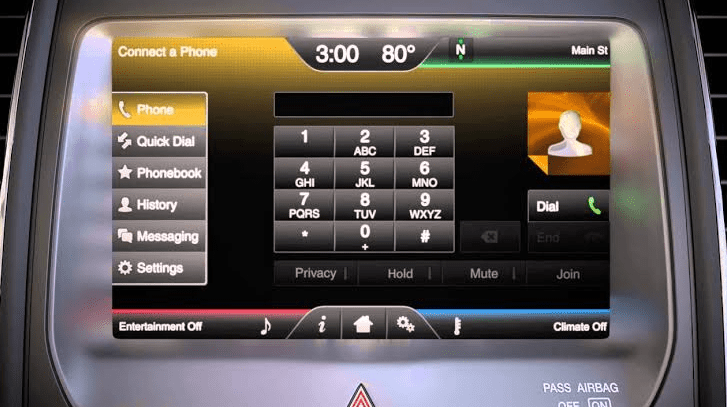
Bluetooth technology has revolutionized the way we connect devices, offering a cable-free solution for seamless communication and entertainment. One of the popular applications of Bluetooth is in Ford vehicles with the SYNC feature, which enables drivers to stream GPS directions and music hands-free. However, if you're experiencing Bluetooth issues with your Ford Sync, you're not alone. Many drivers of Ford models such as Fusion, Focus, Transit, F150, Edge, Expedition, Taurus, Ecosport, and Escape have encountered similar problems. In this article, we will explore the possible causes of Ford Sync Bluetooth issues and provide 17 troubleshooting fixes to help you get your Bluetooth connection back on track.
Why Is My Ford Sync Not Working?
When your Ford Sync isn't working, it's crucial to identify the specific issue causing the Bluetooth problem. Depending on your situation, whether it's a Bluetooth connection error, audio playback failure, or any other problem, understanding the root cause is the first step towards finding a solution. Each Ford model may have different underlying issues affecting the Sync performance. Let's explore some common causes and their corresponding fixes:
1. Fuse Issue
If your Sync Bluetooth music suddenly stops working, there may be a problem with the Sync Bluetooth fuse. To fix this issue, you can follow these steps:
- Consult your vehicle's manual to locate the passenger compartment fuse box.
- Find the fuse associated with Sync Bluetooth and remove it.
- Wait for 10 seconds to a minute, then reinsert the fuse.
- Your Sync issue should be resolved.
2. Possible Cell Phone Malfunction (Glitch or Bug)
Glitches and bugs in smartphones can sometimes interfere with Bluetooth connections. If your Ford Sync Bluetooth audio has stopped working, try resolving any potential glitches on your phone by following these steps:
- Restart your phone to clear any temporary software issues.
- Update your phone's software to the latest version available.
- Disable and re-enable Bluetooth on your phone.
- Attempt to connect your phone to Ford Sync again.
3. The Device is Not Connected
Sometimes, the issue may not lie with Ford Sync itself but with the connection between your phone and the Sync system. If your phone is not connected to Ford Sync, follow these steps to establish the connection:
- Turn on Bluetooth on your phone and ensure it is discoverable.
- On the Ford Sync screen, navigate to System Settings > Bluetooth Devices > On.
- Manually connect SYNC with your phone by selecting your phone's name from the available devices.
- Wait for the connection to establish and ensure your phone automatically connects to Ford Sync when in range.
4. The File May Be Corrupted
If you're experiencing audio issues on your Ford Sync, the file you're trying to play may be corrupted. To troubleshoot this problem, follow these steps:
- Ensure you're playing music from certified sources such as Spotify, Apple Music, or Amazon Music.
- If you've downloaded music onto your device from unofficial sources, check if the files are playable on your device.
- Avoid downloading songs from platforms like YouTube and converting them to mp3, as they may be corrupt and unplayable.
5. The Bluetooth Volume on the Phone May Be Low
If you're unable to hear audio through Ford Sync, it's possible that the Bluetooth volume on your phone or Sync system is too low. To address this issue, follow these steps:
- Adjust the volume knobs on your Ford vehicle and the volume settings on your phone to ensure they are not set to minimum levels.
- Increase the volume gradually to a comfortable level and check if the audio starts playing.
6. Song is Not Playing
If you're unable to play a specific song on Ford Sync, it could be due to various factors. Follow these steps to troubleshoot the issue:
- Ensure your device is connected to Ford Sync via Bluetooth.
- Make sure you've selected and clicked the play button for the desired song.
- If the song still doesn't play, it may indicate a problem with Ford Sync or the audio file itself.
7. Music Files with Incorrect Information
Ford Sync relies on accurate metadata (artist, song title, album, genre) to recognize and play music files. If your Sync isn't recognizing the audio on your device, it could be due to incorrect information in the music files. To resolve this issue:
- Check if the music files have accurate metadata, especially if you've downloaded them from unofficial sources.
- Play music from certified apps like Spotify or Apple Music to ensure proper recognition by Ford Sync.
8. Copyright Protection on Music Files
Some music files may have copyright protection that prevents them from playing on Ford Sync. If you're experiencing issues with specific songs, consider the following:
- Check if the source of the song has copyright protection, such as Soundcloud.
- Ensure you're using authorized platforms that allow full playback of copyrighted songs.
9. Phone Compatibility
Ford Sync is designed to work with compatible devices. If your phone is not Bluetooth-compatible or too old to support Sync, you may encounter connectivity issues. Here's what you can do:
- Verify if your phone has Bluetooth capabilities and meets the compatibility requirements for Ford Sync.
- All modern smartphones generally have Bluetooth, so if you're using a smartphone, compatibility should not be an issue.
10. Update Ford Sync Software
Keeping your Ford Sync software up to date is essential for optimal performance and bug fixes. If you're experiencing Bluetooth issues, ensure you have the latest Sync software version. Follow these steps to update Sync:
- If your Ford comes with SYNC 4/4A, it will receive updates over the air through Ford Power Up. Connect your Ford to a Wi-Fi network for automatic updates.
- If your Ford doesn't have SYNC 4/4A, visit the Ford Update Sync help page and enter your VIN to check for updates. You can install updates via USB, Wi-Fi, or through a Ford dealer.
Troubleshooting Fixes for Ford Sync Bluetooth Issues
Now that we've explored the possible causes of Ford Sync Bluetooth issues, let's dive into the troubleshooting fixes you can try to resolve these problems.
1. Pull Fuse Associated with Sync Bluetooth
If the Sync Bluetooth fuse is causing the issue, follow these steps to resolve it:
- Consult your vehicle's manual to locate the passenger compartment fuse box.
- Identify the fuse associated with Sync Bluetooth using the manual's diagram.
- Open the glove compartment and remove the malfunctioning fuse.
- Wait for 10 seconds to a minute, then reinsert the fuse.
- Verify if the Bluetooth connection is restored.
2. Perform a Master Reset of the Ford Sync System
If your Ford Sync is still not working correctly, a master reset can help clear any bugs or glitches. Follow these steps to perform a master reset:
- Open the Bluetooth settings on your phone and delete the SYNC connection.
- On the SYNC screen, press the "Phone" button and navigate to "Advanced" display.
- Select the "Master Reset" option and confirm the reset.
- Reconnect your phone to Ford Sync and check if the Bluetooth issue is resolved.
3. Reset Connection in Sync
To reset the connection in Ford Sync, follow these steps:
- Turn off Bluetooth on your phone and on Ford Sync.
- Manually connect SYNC with your phone by navigating to System Settings > Connect Bluetooth Device.
- Manually connect your phone with SYNC through the Bluetooth settings on your phone.
- Wait for the automatic connection to establish between your phone and Ford Sync.
- Restart your vehicle and check if the Bluetooth connection is restored.
4. Check the Security and Auto Accept Prompt on Your Device
Ensure you've completed any security or auto-accept prompts on your phone before concluding that Ford Sync isn't working. Follow these steps:
- Unlock your device and check for any security prompts related to Bluetooth connections.
- Accept the prompt or enter the required passcode to establish the connection.
- Verify if the Bluetooth connection is successful.
5. Turn Off Your Ford Vehicle
Sometimes, wireless hardware can be finicky, causing Sync to refuse connections. Follow these steps to power cycle your Ford vehicle:
- Shut off your Ford vehicle entirely.
- Open and close the driver's side door to trigger SYNC to shut down.
- Wait for SYNC to shut down completely.
- Press and hold the Power button on your phone to access the power options menu.
- Choose "Shutdown" or "Power Off" from the menu and wait for your phone to shut down.
- Press and hold the Power button to turn on your phone.
- Attempt to reconnect your phone to Ford Sync.
6. "Forget" Your Ford Vehicle
If your Ford and device still don't sync, you can "forget" the car from your Bluetooth settings and establish a fresh connection. Follow these steps:
- Open the Settings app on your device.
- Navigate to the Bluetooth menu.
- Find your Ford car listed as a linked device and select it.
- Choose the "Forget" option to remove the car from your device's Bluetooth connections.
- Turn off Bluetooth on your device, then turn it back on.
- On the SYNC screen, select "Add a Device" and follow the on-screen instructions, entering "0000" if prompted for a pin.
7. Spotify Refusing to Work
If you're experiencing issues with Spotify on Ford Sync, follow these steps to troubleshoot:
- Open the Settings app on your device.
- Navigate to the Apps menu.
- Find Spotify in the list of apps and select it.
- Force stop Spotify to terminate any background processes.
- Clear the cache and data of the Spotify app.
- Attempt to play Spotify again on Ford Sync.
8. Try Switching Off Your Device
Restarting your phone can often resolve Bluetooth connection issues. Follow these steps to restart your device:
- Power off your device completely.
- If you're using an iPhone, press and hold the Power button until the Apple logo appears.
- If you're using an Android device, simultaneously press and hold the Power and Volume Down buttons for more than seven seconds.
- Wait for your device to restart.
- Attempt to reconnect your device to Ford Sync.
9. Update Your Software
Keeping your device's software up to date is crucial for optimal performance. Follow these steps to check for software updates:
- For iPhone: Go to Settings > General > Software Update and install any available updates.
- For Android: Go to Settings > System > Advanced > System Update and check for updates.
10. Reset Network Settings
Resetting your network settings can help resolve Bluetooth issues related to network connectivity. Follow these steps to reset your network settings:
- For iPhone: Go to Settings > General > Reset > Reset Network Settings.
- For Android: Go to Settings > System > Reset > Reset Network Settings.
Conclusion
Bluetooth connectivity issues with Ford Sync can be frustrating, but with these troubleshooting fixes, you can often resolve them and regain seamless communication and entertainment in your vehicle. Remember to check for specific fixes related to your Ford model and follow the steps carefully. If none of the solutions work, consider reaching out to Ford or consulting a professional mechanic familiar with Ford Sync. Stay connected and enjoy your driving experience with Ford Sync and Bluetooth technology.